How to Configure outgoing email settings in SharePoint server

For configuring outgoing email in SharePoint 2010, you have to install SMTP server,then you have to verify the configuration using Telnet.
How to Configure SMTP on Windows Server 2008
How to check SMTP configuration status in Windows Server
step 1:

Now Open your SharePoint Central Administrator.Click on the System Settings then you will redirect into the following page.

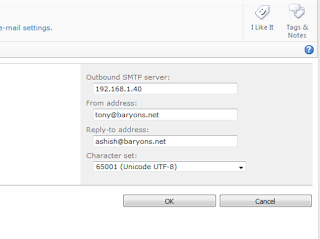
Click on the configure outgoing email link and configure it like this
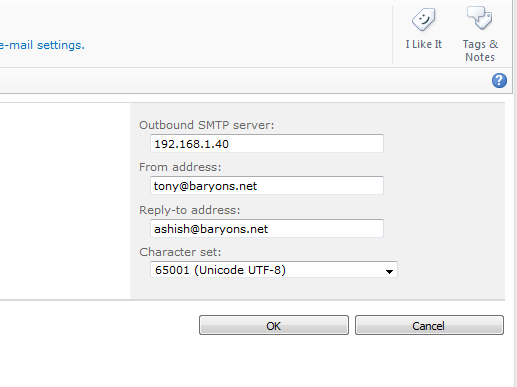
Give your IP on Outbound SMTP server, give from address, reply address ,char set etc.
Now you can add an AD user to your website and It will send the mail to that particular user If you have attached an email for that user.

Now you can attach AD users to your workflow etc..


How to Configure SMTP on Windows Server 2008

Hi Folks I am new to SharePoint and I have done this SMTP configuration and outgoing mail sending set up for my new project. I have done this using lots of researching in web, I would like to share what I have learned, so those who want to do the same it will be a help.
I am going to explain it in 2 steps.
Step 1:
go to server manager(Administrative Tools>Server Manager)
click on features menu in the LHS,then you can see the add features button click on that then it will a open a window like this.
Select the SMTP server from it and Install it. for checking SMTP configuration we need telnet client also so please install that one also.
Step 2:

Then go to  IIS 6 Manager, you can see the SMTP virtual server, please start the server if its not started
Go to properties of the SMTP virtual server and it will open a window like this

select your IP address in that drop down box,go to access tab>inside authentication check anonymous access is checked or not.
Now Click on the relay tab It will open a window like this, check the options you have selected correctly or not.

Save all settings Now you have successfully configured your SMTP server.
verify your SMTP configuration is working or not.