


Installing MongoDb on windows,creating first database,collection and basic queries
The tech world is moving into Artificial Intelligence, data mining and prediction algorithms and much more into the intelligent use of data, so the data storing technology also changing from the relational database architecture to non-relational architecture, NoSQL database etc.
MongoDb is one of the fast growing NoSql database, In which we will be storing the data as collections, basically, document.It will help really good in data mining and data prediction operations.
Let's see step by step how to install MongoDb into a windows machine
Step 1: Download mongo MSI installer here: Download
The non-commercial version is free, Click install the application using MSI
Step 2: provide a space to store the data & log >> type cmd and open command prompt
paste this command in terminal
data : md \data\db
log : md \data\log
Step 3 : Now go the mongo installed path bin folder in command prompt and type mongod
 The server will be up and it will be waiting for connections, the default port is 27017
Step 4: open another terminal and go to the mongo bin folder and type mongo.exe
mongo server will be up and running you can write your queries
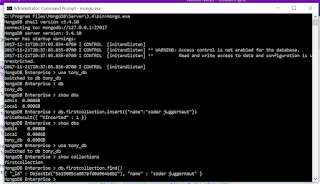
Queries
>> For creating database
use database-name eg : use coder_juggernaut
>> Display databse
show dbs :> list all dbs
db :> current db
>>Creating Collections
db.firstcollection.insert({"name":"coder juggernaut"})
>> view items in Collections
db.firstcollection.find()
These all some basic queries to start with, instead of terminal you can use Studio 3T, it's a good tool it will give good visualization and simple querying features.
Step 2 extension: If you didn't get the log in the mentioned folder create a config file and place it in the mongo root folder with this text.
systemLog:
destination:file
path: log path.
MongoDb is one of the fast growing NoSql database, In which we will be storing the data as collections, basically, document.It will help really good in data mining and data prediction operations.
Let's see step by step how to install MongoDb into a windows machine
Step 1: Download mongo MSI installer here: Download
The non-commercial version is free, Click install the application using MSI
Step 2: provide a space to store the data & log >> type cmd and open command prompt
paste this command in terminal
data : md \data\db
log : md \data\log
Step 3 : Now go the mongo installed path bin folder in command prompt and type mongod

Step 4: open another terminal and go to the mongo bin folder and type mongo.exe
mongo server will be up and running you can write your queries
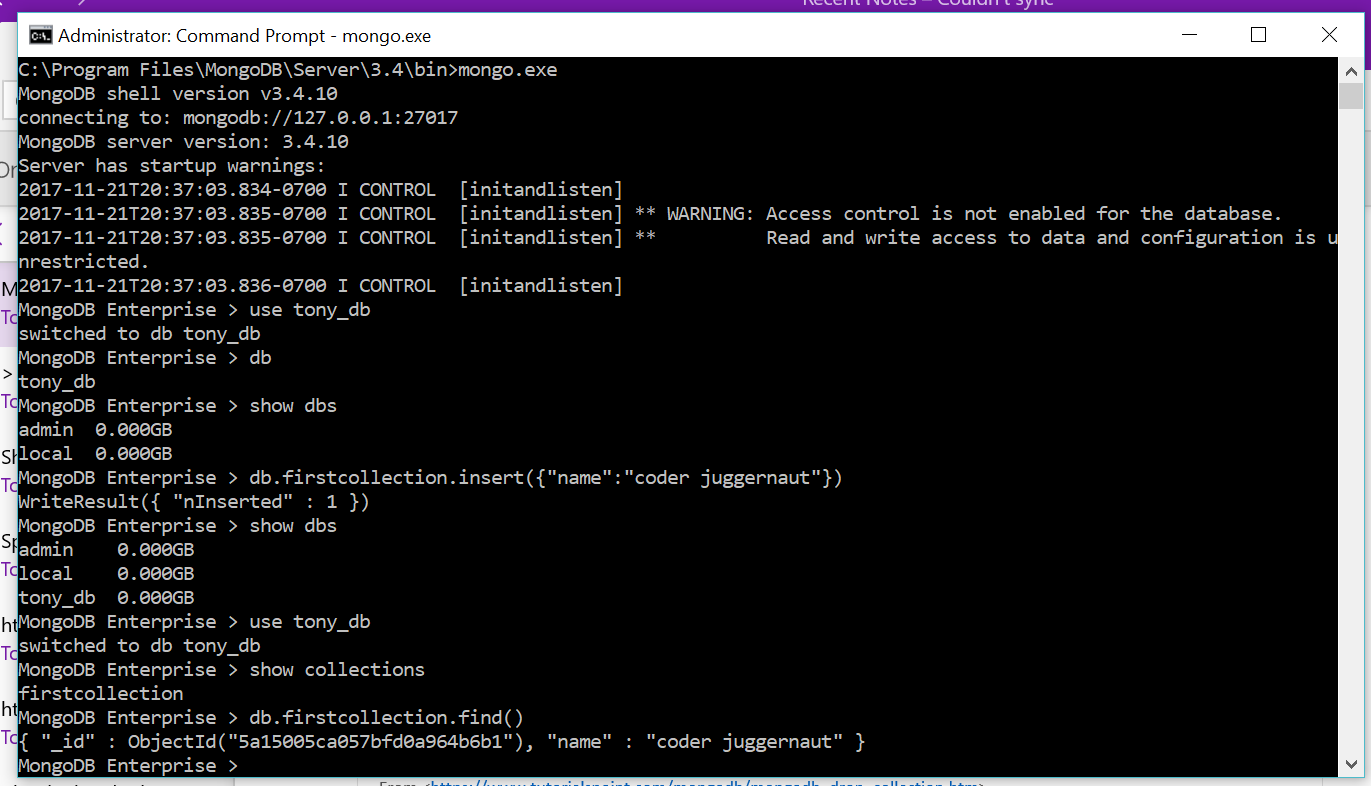
Queries
>> For creating database
use database-name eg : use coder_juggernaut
>> Display databse
show dbs :> list all dbs
db :> current db
>>Creating Collections
db.firstcollection.insert({"name":"coder juggernaut"})
>> view items in Collections
db.firstcollection.find()
These all some basic queries to start with, instead of terminal you can use Studio 3T, it's a good tool it will give good visualization and simple querying features.
Step 2 extension: If you didn't get the log in the mentioned folder create a config file and place it in the mongo root folder with this text.
systemLog:
destination:file
path: log path.


.jpg)
